On this page
The Amazon Fire TV Stick is one of the easiest ways to watch IPTV in Kuwait, but if you have never set one up, the menus can be confusing. This guide takes you from a stick still in its box to your first live channel, with every step explained. If you already know your way around Fire TV and only need the short version, our IPTV Firestick Kuwait page has a quick setup and model advice.
What you need
- A Fire TV Stick, Fire TV Stick 4K, 4K Max or Fire TV Cube.
- A TV with a free HDMI port. Use a 4K-capable port if you have a 4K stick and TV.
- A stable internet connection: home fibre or 5G home internet.
- An Amazon account (you can create one during setup).
- Your IPTV Kuwait login details, which we send on WhatsApp after you choose a plan.
Part 1: Set up your Fire TV Stick
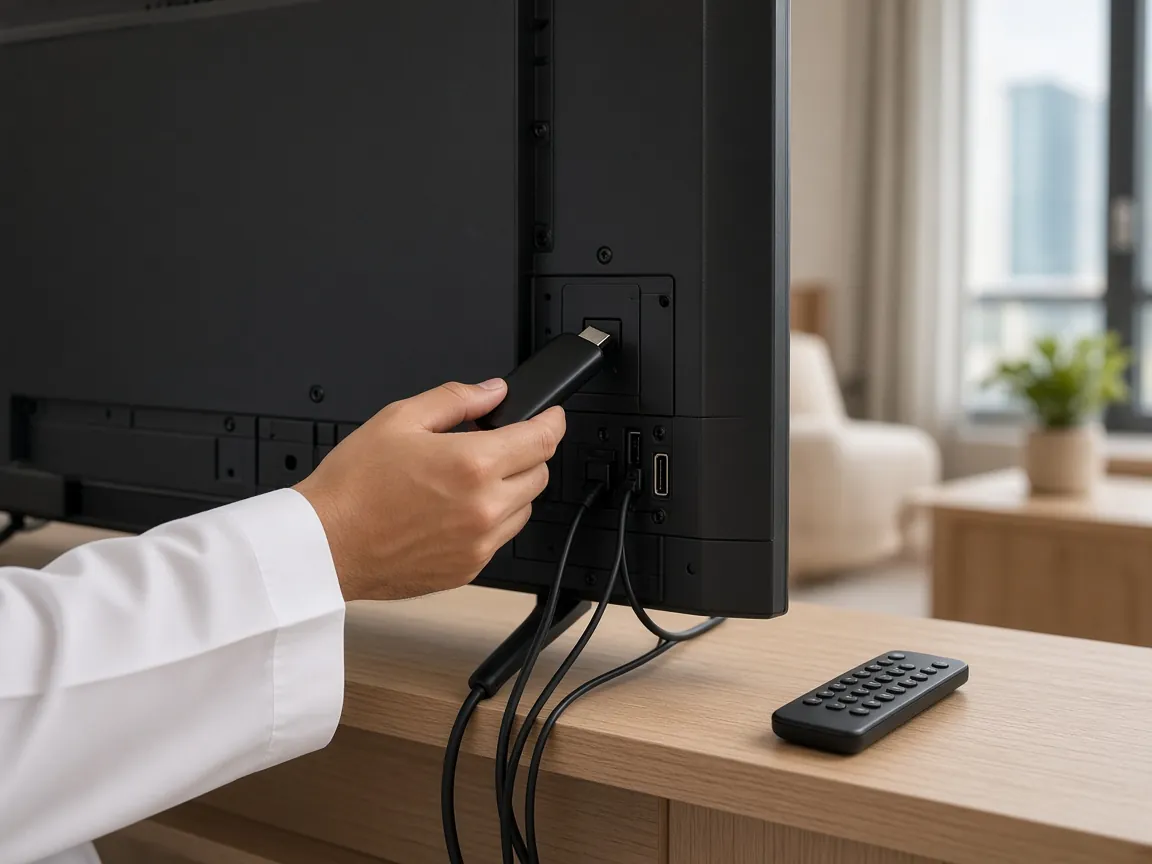
- Plug in the stick using the HDMI extender. The short extender cable in the box moves the stick away from the back of the TV, which improves the Wi-Fi signal.
- Use the supplied power adapter. Connect it to a wall socket rather than the TV’s USB port, which often cannot supply enough power and causes random restarts.
- Select the right input. Switch your TV to the HDMI input the stick is plugged into. The remote should pair automatically; if not, hold the Home button for about ten seconds.
- Choose your language and join Wi-Fi. If your router shows two networks, pick the 5 GHz one for a faster, less crowded connection.
- Sign in to Amazon. Follow the on-screen prompts. You can skip the optional app suggestions; you do not need them for IPTV.
- Install updates. Go to Settings → My Fire TV → About → Check for updates and install everything available before you continue.
Part 2: Install the IPTV player app
An IPTV player is an app that shows channels from your subscription. It contains no channels by itself. We name the player we recommend for Fire TV in our WhatsApp setup message, and there are two ways to install it, depending on where that app is published.
Option A: install from the Amazon Appstore
- Open Find. On the home screen, select Find and then Search.
- Search for the app by typing its name or using the microphone button on the remote.
- Select it and choose Get or Download. Wait for the installation to finish, then choose Open.
Option B: install with a downloader app
Some recommended players are not listed in the Appstore. In that case you install them with a file-downloader app, which is available in the Appstore itself.
- Install a downloader app from the Appstore by searching for “downloader”.
- Turn on Developer options. Go to Settings → My Fire TV → About and press Select on your device name seven times, until a message says you are a developer.
- Allow installs for the downloader only. Go back to My Fire TV → Developer options → Install unknown apps and turn it on for the downloader app. Leave it off for everything else.
- Open the downloader and enter the link we send you on WhatsApp. When the download finishes, choose Install.
- Delete the installation file when the downloader offers to, to free up storage.
- Turn the permission back off in Install unknown apps once the player is installed. This keeps your stick secure.
Safety first: only install apps we or the Appstore recommend. Never install bundles of unknown apps or buy a “fully loaded” stick, because they are a common source of malware and stop working without warning.
Part 3: Log in with your IPTV Kuwait details
- Open the player app. On first launch it asks how you want to add your service.
- Pick the matching login type. Choose the option that matches the details we sent: a username, password and server address, or a playlist link.
- Type the details carefully. Capital letters matter, and server addresses must include every slash and colon. Use the Next key to move between fields.
- Save and wait. The first load downloads the channel list, movie and series library and programme guide, so it takes longer than later launches.
- Test a few channels. Open channels from different categories. If you have a 4K stick and TV, try a 4K channel too.
Part 4: Make it easy for the whole family
- Add favourites in the player app so everyone can find their channels without scrolling through the full list.
- Move the app to the front of your home screen. Hold the Home button, choose Apps, highlight the player, press the menu button and choose Move to front.
- Set a parental PIN in the player app if children use the TV, and lock categories you would rather they did not open.
- Write down where the settings are, so other family members can switch quality or restart the app without calling you.
Troubleshooting common Firestick IPTV problems
“App not installed” or the install fails
Check that Install unknown apps is switched on for the downloader, that there is enough free storage, and that your Fire TV software is up to date. Restart the stick and try again.
The login is rejected
Most login errors are typing mistakes. Compare every character with our WhatsApp message, check for a space at the end, and confirm that the server address starts exactly as written. If it still fails, message us so we can verify your account.
Channels buffer or freeze
Restart the stick and router, make sure you are on 5 GHz Wi-Fi, and try the channel in a lower quality. Our full guide to fixing IPTV buffering in Kuwait covers 5G and fibre fixes.
The app closes by itself
Clear the app’s cache in Settings → Applications → Manage installed applications, uninstall apps you no longer use, and restart the stick. Low storage is the usual cause.
The remote stops responding
Replace the batteries, then hold Home for ten seconds to re-pair it. If the TV supports it, turning on HDMI-CEC lets your TV remote control the stick too.
Frequently asked questions
Can I install IPTV on a Firestick without a computer?
Yes. Every step in this guide is done on the TV with the Fire TV remote. You only need your phone to read the login details we send on WhatsApp.
Does installing a player app change my Firestick?
No. Installing an app through the official settings does not modify the stick’s system. You can uninstall the app at any time, just like any other app.
How do I update a player installed with a downloader?
Many players offer an update inside the app’s own settings. If not, we will send you the latest link on WhatsApp; install it over the existing app and your login is usually kept.
All set? If you do not have a subscription yet, compare IPTV Kuwait plans from $18. If you are stuck on any step, message our support team, available 24/7. For more on what is included, visit the IPTV Kuwait homepage.